
For the past 6 years, WebAIM has evaluated the accessibility of the home pages of the top 1 million websites.
Over 96% consistently fail on the following six categories:
- Low contrast text
- Images missing alternative text
- Empty links
- Empty buttons
- Form inputs with missing labels
- Missing document language
If everybody were to address just these six types of issues, it would significantly improve accessibility across the web.
Using WebAIM’s Web Accessibility Evaluation tool (WAVE), we’ll look at each of these issues in turn. We’ll use The Friends of Animals website as an example.
How to use the WAVE tool
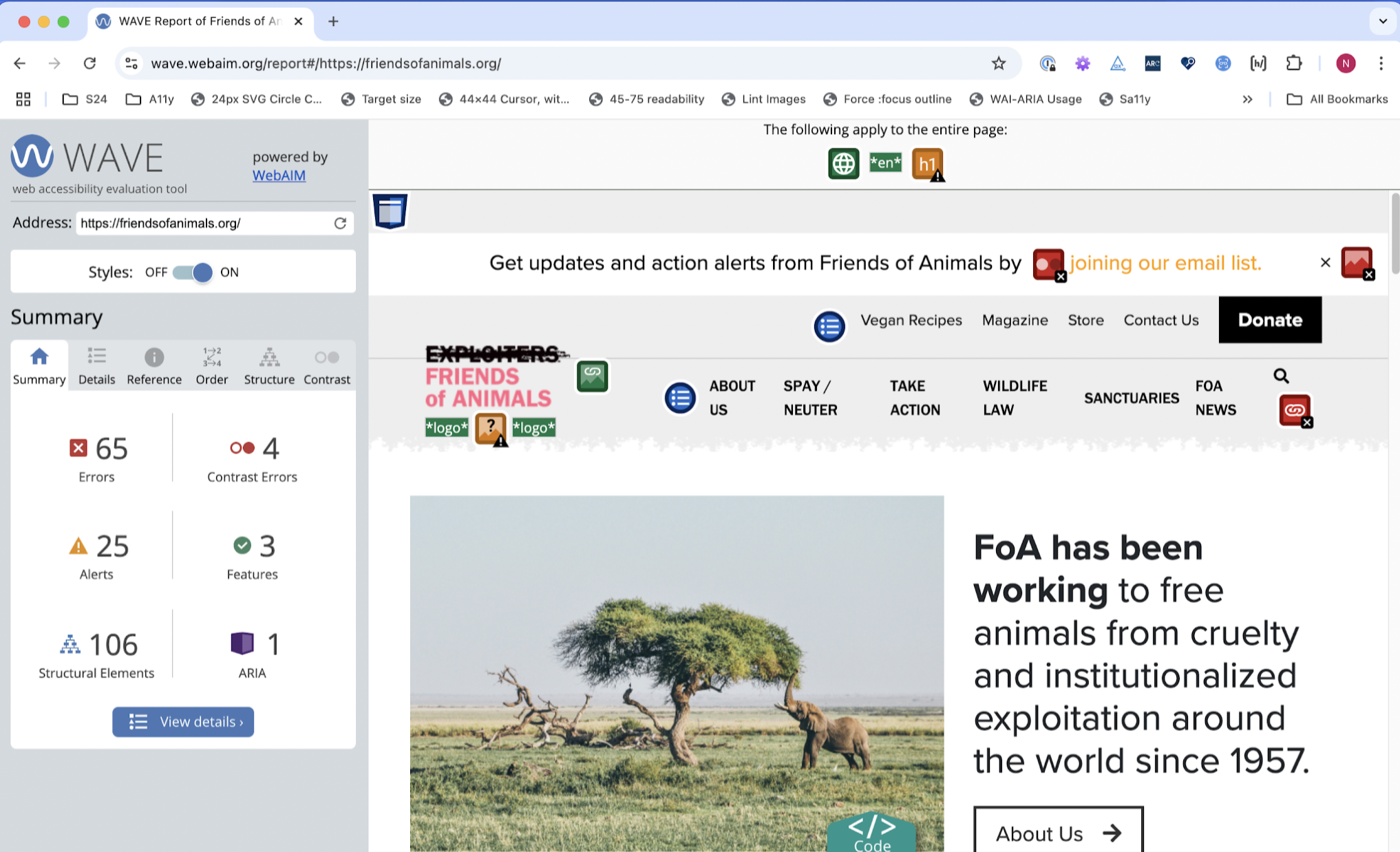
When you put a web address in WAVE, a panel will open on the left of the screen, providing a summary of the issues it has found. Icons appear on the web page to indicate where the issues are located.
Let’s look at the six common accessibility issues.
Contrast errors
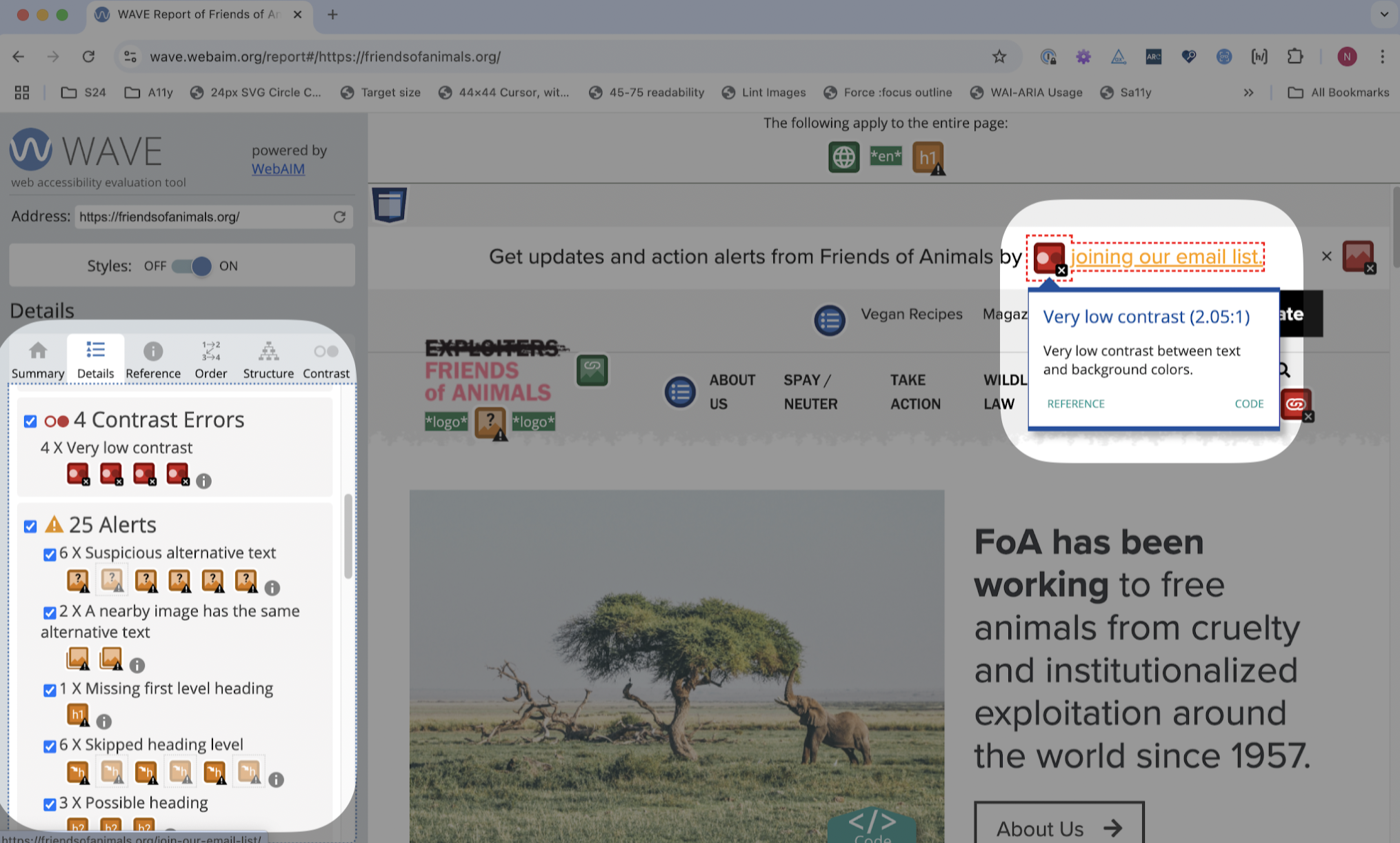
The details tab shows there are four contrast errors. When you click an icon in the details tab, the location of the contrast error will be highlighted on the web page. In this example, you can see that it highlights an error at the start of the homepage.
The WAVE tool shows us that the orange link for ‘Joining the email list’ has low contrast. This means that the orange colour is too light against the white background. If the colour of the text does not contrast enough with the background colour, people with low vision will struggle to read it.
The Web Content Accessibility Guidelines (WCAG) recommend that the colour contrast ratio for text content is at least 4.5:1. The WAVE tool shows that in this example, the contrast ratio is 2.05:1, which is well below the recommended minimum.
The WebAim Contrast Checker is an online tool that you can use to check the colour contrast ratio of your content.
With low contrast text, unless you are able to directly modify colours while editing your site, you may have to raise any contrast issues that you find with your developer. But by using the WebAim contrast checker tool and WAVE, it will be easier for you to explain to the developer what changes are needed.
Missing alternative text
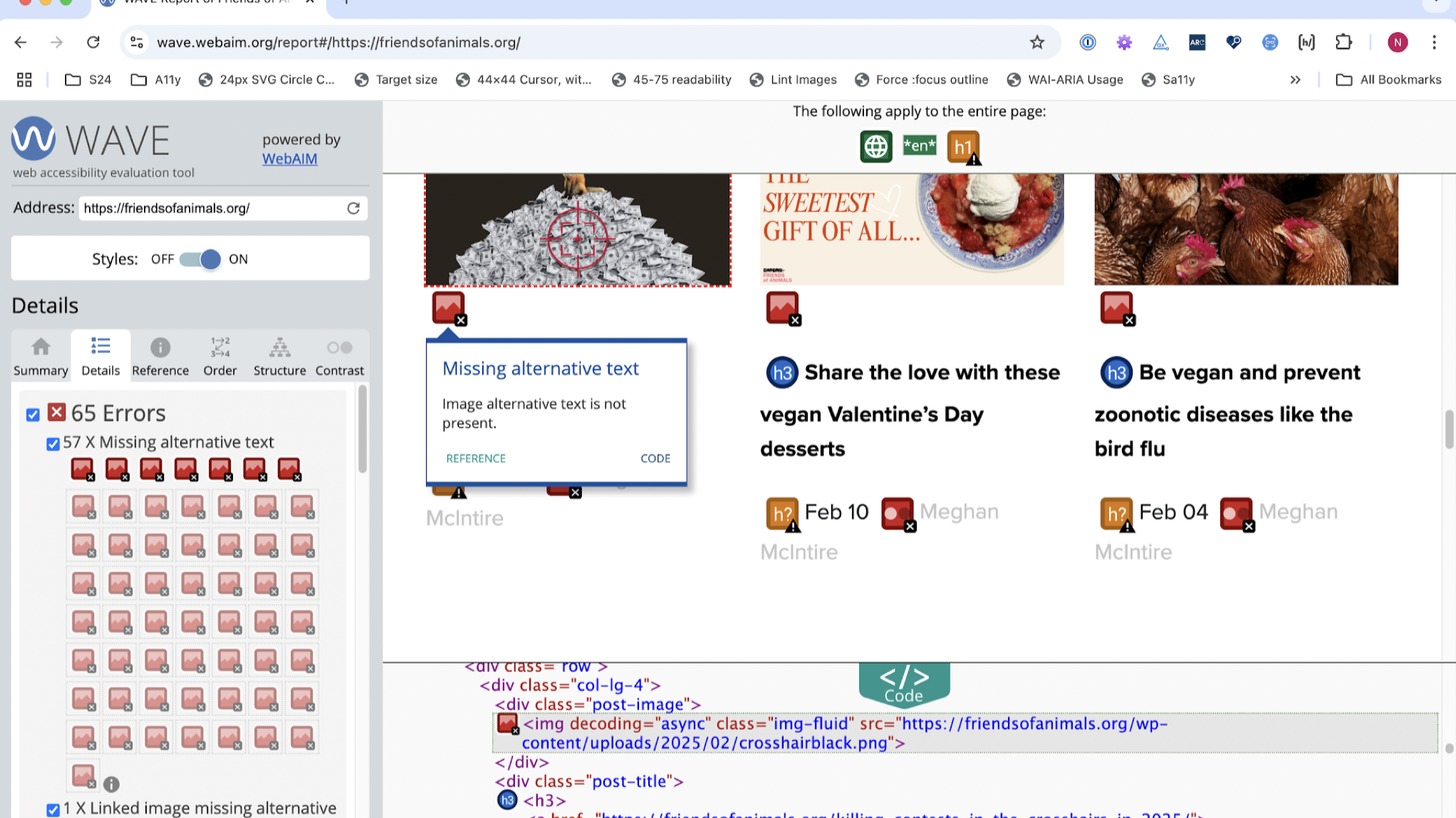
Using the WAVE tool, when we look at the panel on the left-hand side, the details tab shows that 65 errors have been flagged.
Quite a few of these errors are images with missing alternative text. In the example shown, we have selected one of the errors from the list, and it has highlighted the image with the error, indicating that alternative text is not present.
Alternative text is all about providing an equivalent experience for people who cannot see images. When using a screen reader, a visitor to your website will rely on alternative text to acquire the same context that a sighted user will get from looking at the image.
Our guide to accessible content includes a whole section related to images and alternative text.
Empty links and buttons
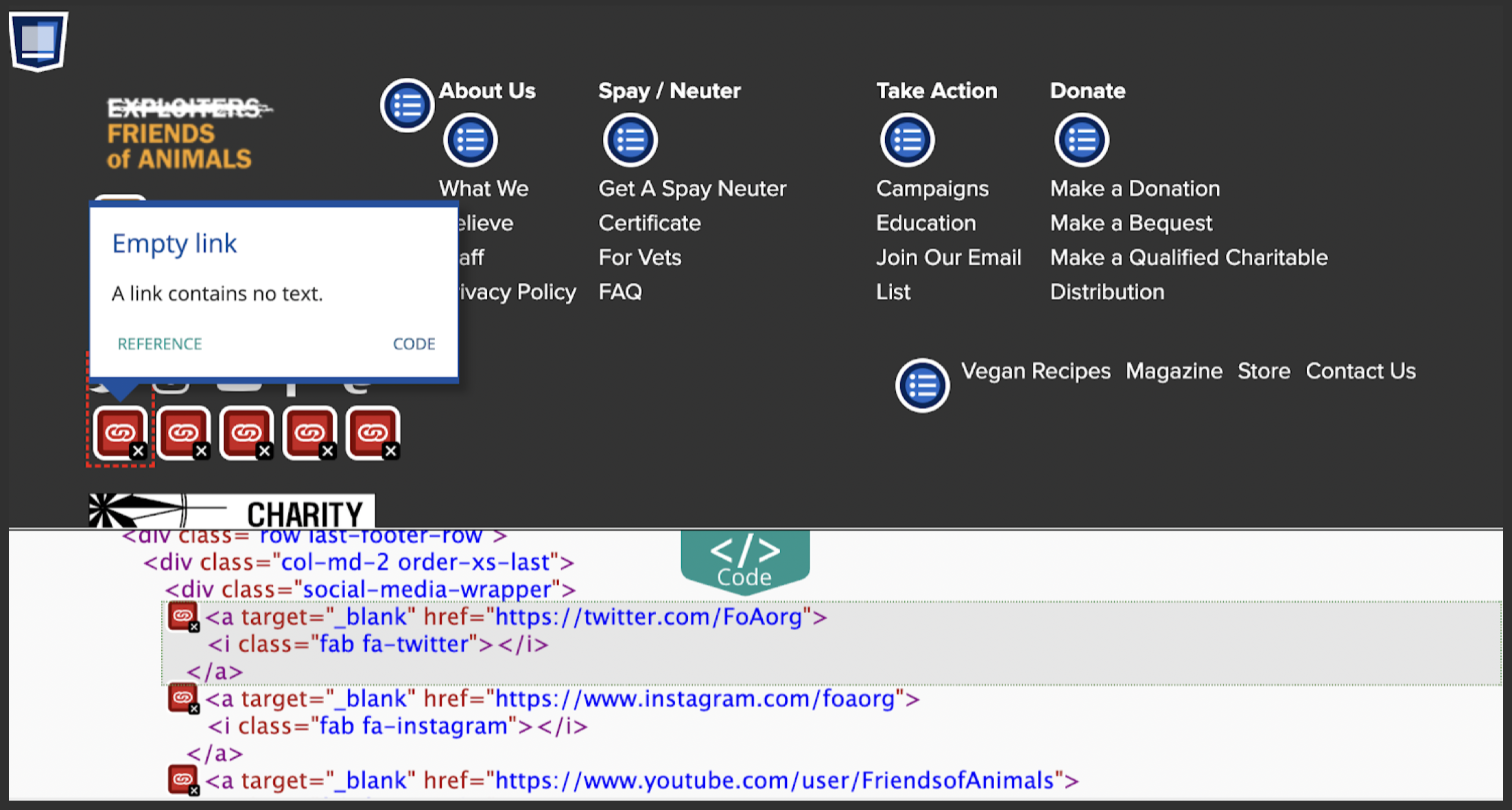
An empty link has no text associated with it in the code. WAVE has found some empty social media links in the page footer.
People using a screen reader or keyboard to navigate the website may find these links confusing because there is no text to tell them where the link will take them if they interact with it. This is something that would need to be raised with a developer.
Empty buttons are basically the same – they are missing any text to let people know what the purpose of the button is. The difference is that links take you to a different place, whereas buttons trigger an action of some sort, such as opening a pop-up window. The WAVE tool will find empty buttons, too.
Form inputs with missing labels
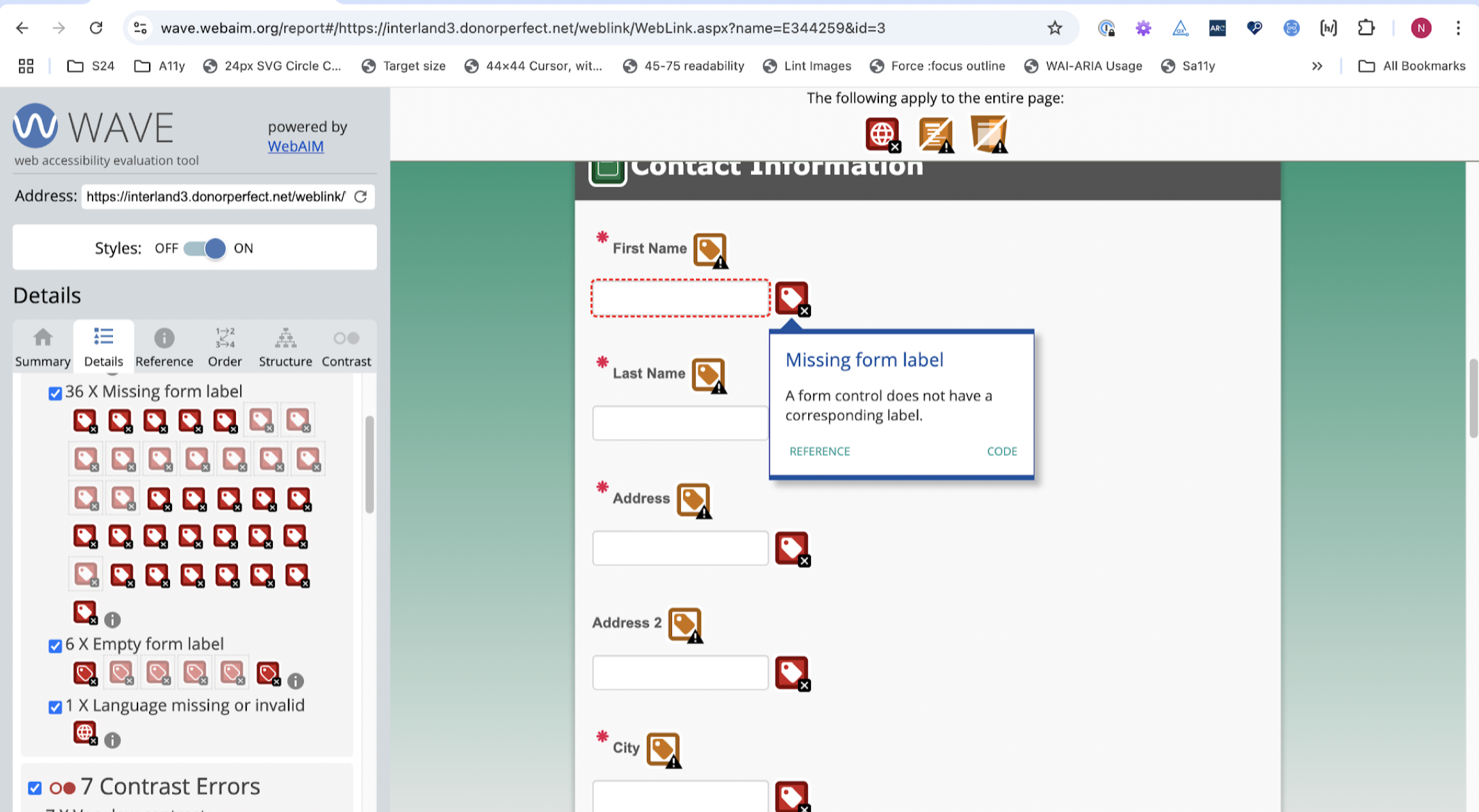
In this example, on the contact information form, you can see errors related to missing form labels. The form includes text above each field on the form to tell the person filling in the form what to enter into each field. However, this text is not correctly linked with each field in the HTML code.
This disconnect makes it much harder for a person using a screen reader to fill in this form, because it would be unclear what they need to fill in for each field. This is an issue that would need to be raised with your website developer to fix.
Missing document language
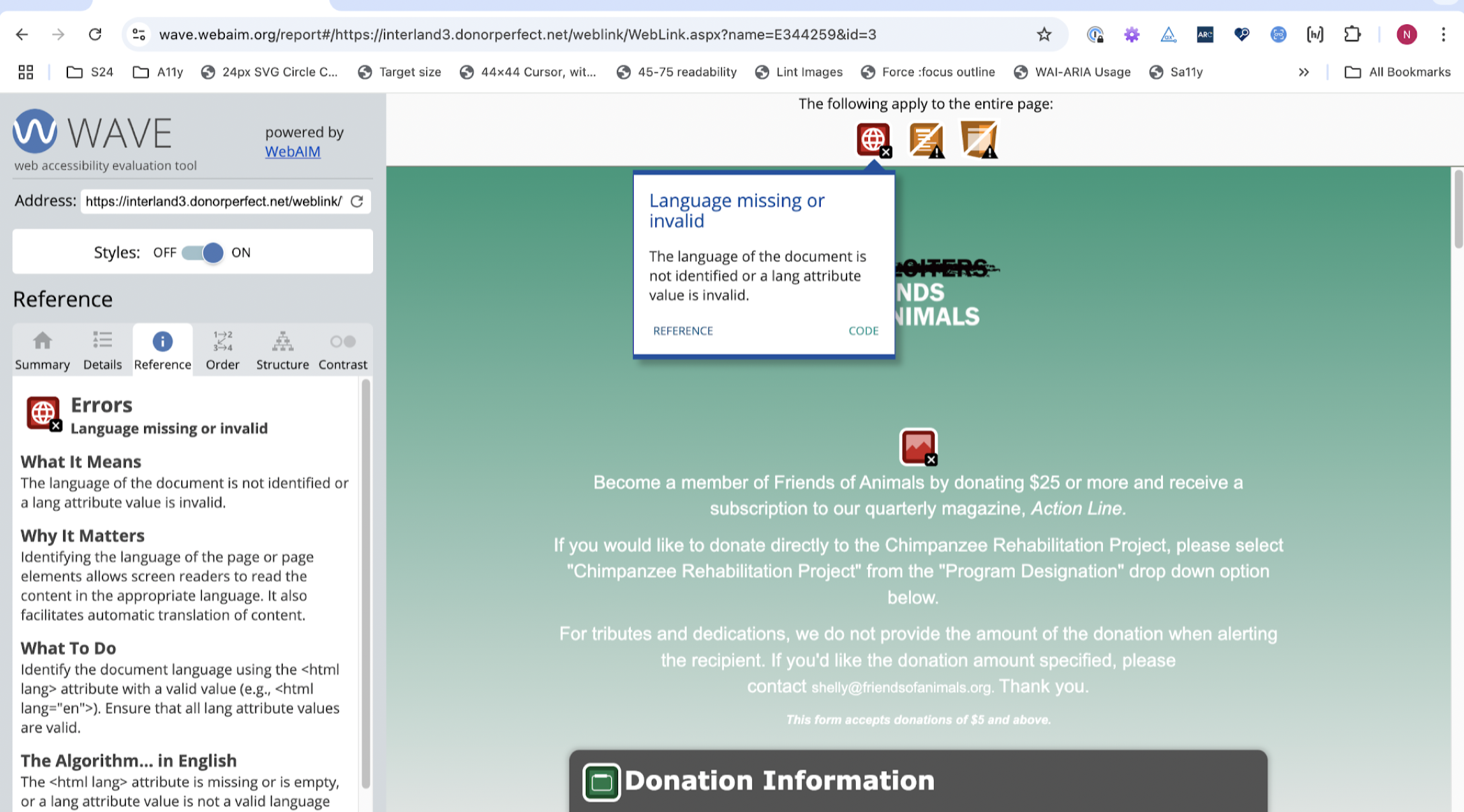
The last item from the list of common accessibility issues is when the document language is either missing or invalid.
This is a problem because if the web browser doesn’t know what language the web page is written in, it cannot provide a reliable automatic translation of the text content.
A missing or invalid document language also impacts the use of the correct language model by screen readers. As with many of the issues raised in the examples shown, this is likely to require developer input to resolve.
Improving accessibility on your website
If you’d like to check your website for these common accessibility issues, simply put your website address into the WAVE tool and see what is flagged. You can either copy and paste a web page address into the online evaluation tool, or install the WAVE browser extension in Chrome, Firefox and Edge.
If you’d like to improve accessibility on your website:
- Take a look at our guide to accessible content, which helps you to add content to your website in an accessible way
- Install Sa11y or Editoria11y for quick reviews of your work
- Visit W3C for advice on making your audio and media content accessible
- Try WebAIM’s colour contrast checker
- Book an accessibility review with our team of experts
Understand accessibility on your website
In our single-page accessibility review, our team of accessibility experts will identify where you have high-impact issues. We’ll explain the problems these cause for your visitors and offer recommendations on how to fix them. Use the review to start planning improvements.
Tell me more about the accessibility review(This will open in a new window)