
More than two million people are living with sight loss in the UK and they are relying on you to write alt text (also known as alternative text) so they can understand the purpose of the images you’ve chosen.
If you haven’t got to grips with writing alt text for images, you’re not alone. Missing alt text is one of the top six accessibility issues detected on the top 1 million website home pages.
There are a host of AI tools that can help generate alt text. However, AI tools that claim to automate alt text generation completely are making false claims. You should always manually review AI generated content to ensure it makes sense in the context of your page content.
Do I have to write alt text?
If you want everyone in your audience to engage with your content, then yes.
When you post images that convey meaning or context without alt text, you are excluding people; it doesn’t make good business sense. Get into the habit of writing alt text and remember that the job isn’t complete until the alt text is written.
Improving accessibility is the primary goal, but it can also improve how your images rank in Google image searches.
Working with alt text generators
There are plenty of choices out there. Many, such as the ChatGPT image alt text generator, are available to run from your web browser. Many platforms, especially on social media, give you the option to write alt text yourself or automatically generate it.
If you have privacy concerns, you may prefer something that runs locally on your own computer. EyeDrop is available for Apple Silicon Macs. If you have a PC with Copilot+ and Microsoft Office, then Word and PowerPoint can automatically generate AI-powered alt text without data leaving your machine. More technically minded people may choose to install Ollama and use their preferred vision Large Language Model with a custom Windows application, e.g. Image-AltText-Generator.
With any automated alt text tools, it’s crucial that you check the output before uploading or posting. Generating alt text automatically often produces text that isn’t quite right. AI doesn’t know your intention when you choose an image. It only provides a summary of what it thinks is in the image and can make things up. While it can be a useful aid, AI generated alt text always needs human review.
When you write your own alt text, you can tailor it to the context in which you are using the image, giving equality of experience for your audience.
Keep practising! The more you do it, the easier it gets.
Comparing human-written and generated alt text
How does AI generated alt text compare to human-written alt text? Remember that images work with text on a web page or a social media post to express meaning.
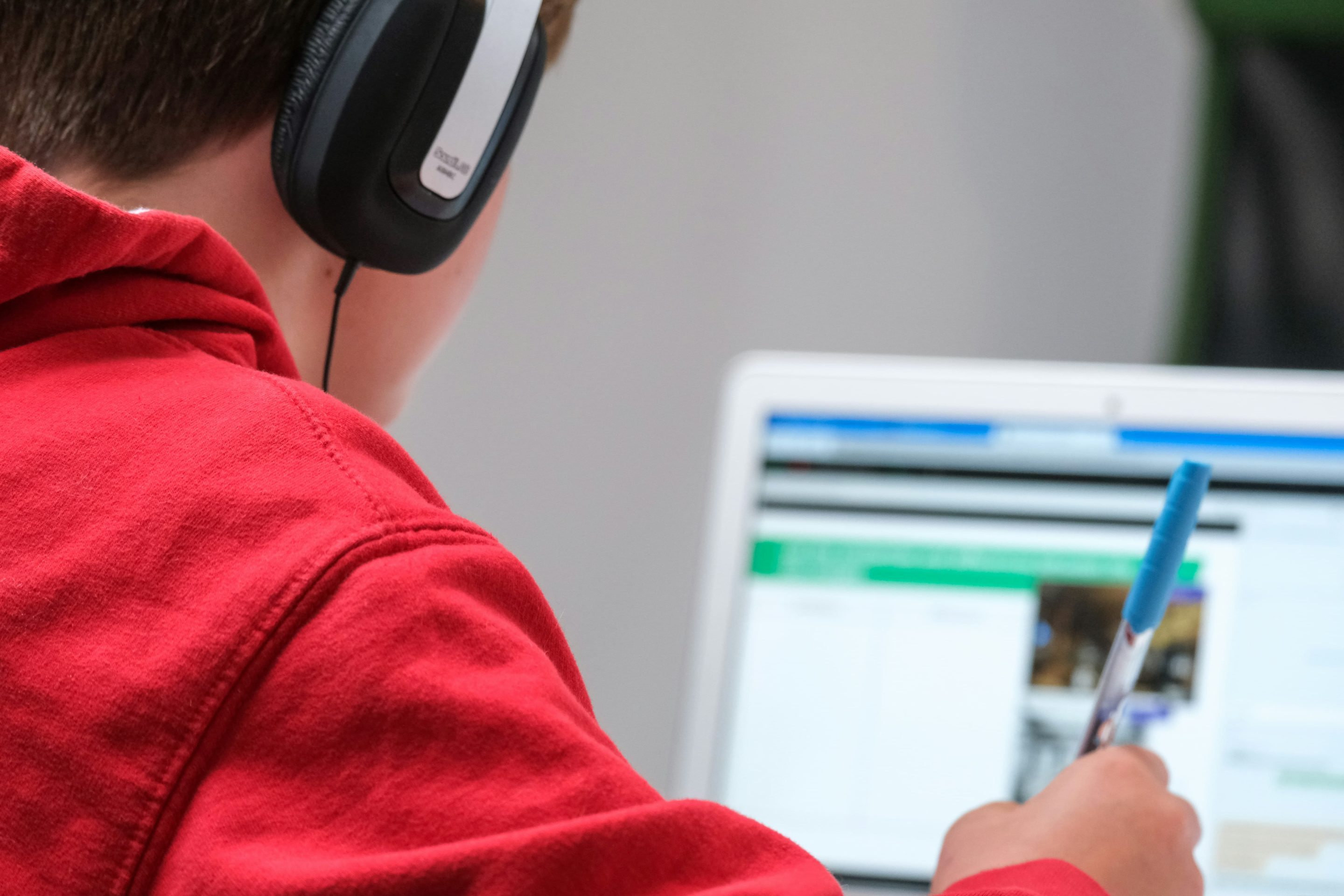
Let’s use the image below as an example. Why did I choose this image? In the context of this blog post, I want to illustrate someone having screen content read out to them, because image alt text is read out for screen reader users.
Chat GPT generated alt text
The output: “A young student wearing a red hoodie and over-ear headphones sits at a desk, viewed from behind, holding a blue pen while focusing on a computer screen. The monitor displays a blurred educational interface or online learning platform, suggesting remote learning, studying, or virtual class participation. The image conveys themes of online education, e-learning, homeschooling, digital classrooms, student concentration, and modern technology-assisted studying in an indoor environment.”
This text is too long. It has described every detail, which isn’t necessary. Listening to all of that with your screen reader would get pretty frustrating!
Altexty generated alt text
Altexty is a free tool powered by Gemini AI
The output: “A person wearing a red hooded sweatshirt and headphones works on a laptop, holding a blue pen.”
This is a perfunctory description of the image. Does it matter that the student’s pen is blue? How does knowing that help my audience get meaning from the image?
Facebook generated alt text
The output: “May be an image of studying, tablet, screen, office and text”
This text is too short, too vague, and not a complete sentence. You don’t need to include ‘image of’ in your alt text. The screen reader will know this is an image and describe it as such. It’s also good practice to use punctuation in alt text, so finish the sentence with a full stop.
Tailwind generated alt text
Tailwind App (not to be confused with Tailwind CSS) offers a free alt text generator
The output: “A person in a red hoodie, wearing headphones, focuses on a laptop screen while holding a pen. The scene conveys concentration and study.”
This text isn’t too bad as a starting point. But some refining is still required.
Alt text written by a human
My output: “A young student wearing headphones is holding a pen and looking studiously at a laptop screen, which has an image of a website.”
I’ve shown focus, action, and context. I’ve described the main focus of the image which is the student wearing headphones. I’ve described the action taking place which is studying. And I’ve given some context in that the student is working on a laptop.
Getting to grips with alt text
- Generated alt text can be used as a starting point but it will always need to be reviewed and edited for accuracy and appropriate meaning.
- Make sure all staff in your organisation know the reason why they need to write alt text for images and make sure it’s part of the onboarding process for new staff. You can use our guide to accessible content as a handy reference. Other sources for alt text advice include the Web Accessibility Initiative, RNIB and BBC GEL.
- You can learn more about alt text and practice writing with Poet Training Tool from Benetech.
- Write a crib sheet for your team on where to find the alt text field for any digital platforms that you use. There’s already lots of help online to get you started, for example Facebook, Instagram, and Pinterest.
- Set aside some time each week to retrospectively add alt text to images in web pages and old blog posts. You can use the WAVE tool to identify where alt text is missing or where it could be improved. See our blog post on using WAVE for pointers.
Building accessibility into your CMS
When we set up Content Management Systems (CMS) for our clients, we create flexible components to make it easy to add media content. Each image field has its own alt text field so the editor can write context-specific alt text based on how the image is being used. If you would like a chat about the accessibility features of your Content Management System, get in touch.